

Watermark Coverage Check Released
Find Shopify product images your watermark app may have missed
Watermark Coverage Check, for Shopify product images
Compare a product export from before your watermark run with one from now. See which product images are new since the run, which are unchanged and may have been missed, and which changed.
Your files stay in this browser tab. They’re never uploaded, stored or sent anywhere. The check doesn’t open your images or connect to your store.
How it decides
Image receipt
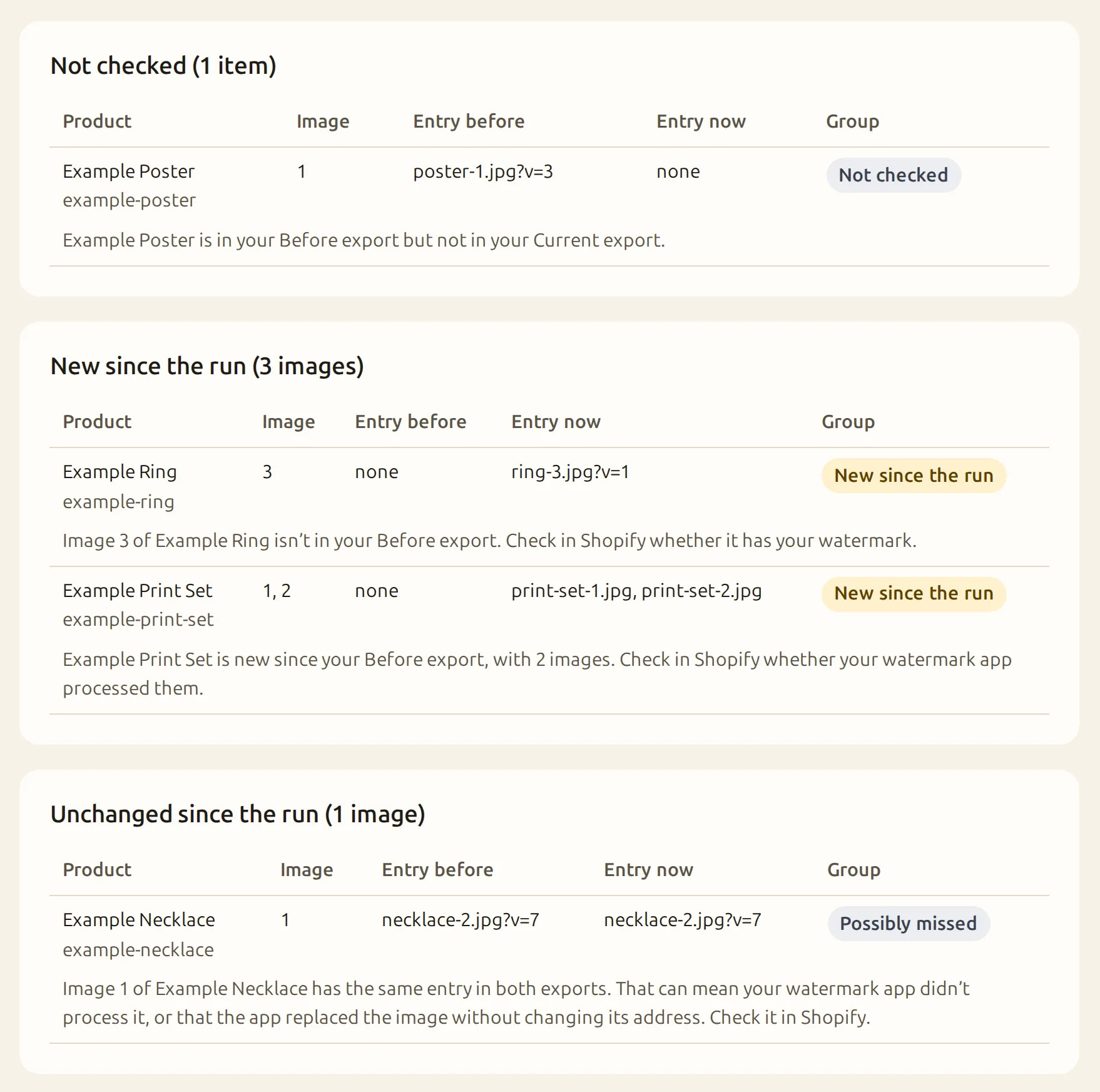
This compares the image entries in two exports. It doesn’t look at the images, so it can’t tell whether an image has a watermark.
Check your files
Export from before the watermark run
A Shopify product export: all products, all columns.
Export from now
Export your products again after the run, the same way.
Check the labels: the files don’t record when they were exported. Crowdfile can’t verify which file is which. The results assume the roles you confirm; swapping the files swaps the results.
Choose the export from before the run and the export from now.
Each file up to 20 MB and 200,000 rows.
How it works
- Export your products from Shopify before you run your watermark app, and again after it finishes.
- Choose both exports here, then tick the box that names them.
- Click Check product images, then download the receipt as CSV or text.
What it checks
- Product images that are new since the run
- Product images whose entry is unchanged since the run
- Product images whose entry changed
- Products with no image
What it won’t do
- It doesn’t look at your images, so it can’t tell whether an image has a watermark.
- It reads the two files you choose. It doesn’t connect to your store or edit anything.
- It checks product images only, not theme, collection, blog or variant images.
- It doesn’t run on its own. Each check uses the files you choose.
How to get the two exports
Before the run: in Shopify admin, go to Products and select Export. Choose All products and CSV file for Excel, Numbers, or another spreadsheet program, then export. Keep that file.
After the run: when your watermark app says it has finished, export your products again the same way.
Already ran it? If you didn’t export before the run, an older export works too. Images added after that export show as new since the run.
Questions
- Does it check whether my images have a watermark?
- No. It compares the image entries in two exports, so it can show which images are new or unchanged since your run. It never opens the images.
- Why does it say “possibly missed”?
- An image whose entry is the same in both exports may not have been processed. But an app can also replace an image without changing its address, so the export alone can’t tell. Check those images in Shopify.
- What does “Changed” mean?
- The image’s entry is different now: a new file, or a new version of the same file. That shows the image changed, not that it has a watermark.
- Which images does it cover?
- Product images in a Shopify product export. Not theme, collection or blog images, and not variant images in this version.
- Does it connect to my store?
- No. It reads the two files you choose, in this browser tab, and never changes them or your store.
Privacy
- Your files are read by your browser, in this tab. They’re never uploaded, stored or sent anywhere.
- The check never opens your image addresses, connects to Shopify, or changes your files.
- The receipt lists handles, titles, image positions and image addresses from your files, with no image content.
- When this page counts visits, it sends only content-free events. It never sends file names, products, image addresses, results or counts.
Crowdfile is not affiliated with Shopify.
Find Shopify product images your watermark app may have missed.
Free. No account.
Choose your files