

Shopify Collection Change Preview Released
Preview automated collection changes before a Shopify CSV import
Preview which products would join and which outcomes need review before you change automated collection conditions.
Your files and conditions stay in this browser tab. They’re never uploaded, stored or sent anywhere, and the preview never changes them.
How it decides
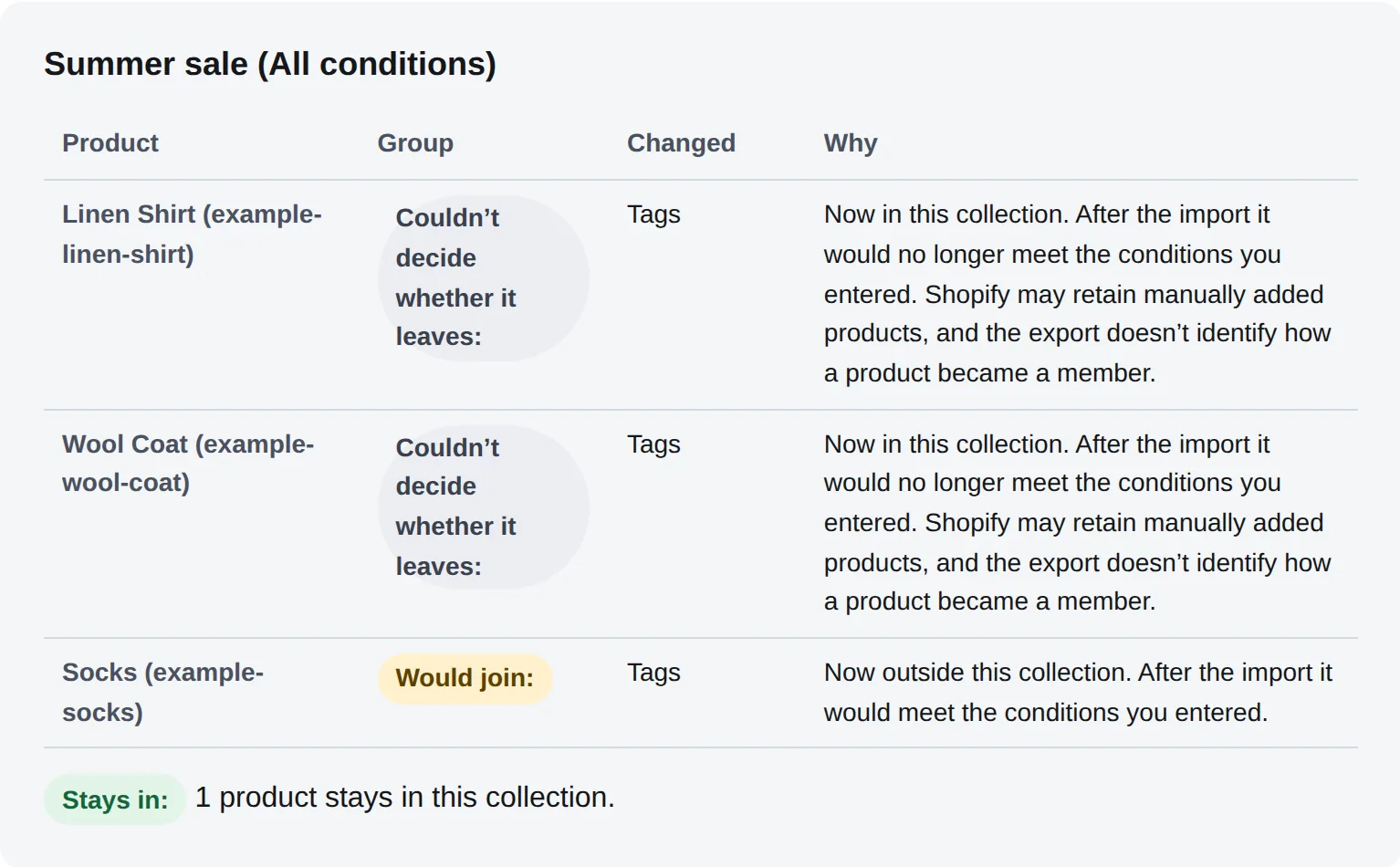
Collection receipt
Choose an export of your store and the product CSV you plan to import, then enter the conditions of the collections you care about. The preview shows which products would join and which outcomes need review for each one.
Check your files
Product export of your store now
A Shopify product export: all products, all columns.
The CSV you plan to import
The Shopify product CSV you’ll give the importer.
Check the labels: the files don’t record what they are or when they were taken. Crowdfile cannot verify which file is which. Findings assume the confirmed roles are correct; reversing the files reverses the findings.
You enter the conditions. Shopify product exports don’t include collections, so this preview can’t read your store’s collection settings. It uses only the conditions you enter here.
Collections to preview
Up to 20 collections per preview.
Clear both files? Your collections and conditions stay.
Each file up to 20 MB and 200,000 rows.
How it works
- Choose an export of your store and the CSV you plan to import, then answer the overwrite question.
- Enter each collection’s conditions as they are in Shopify. Open the collection’s conditions in Shopify admin.
- Click Preview changes, then download the receipt.
What it checks
- Products that would join and outcomes that need review for each collection you enter
- Conditions on title, type, vendor, tag, price, compare-at price, product category and status
What it won’t do
- It can’t read your store’s collections. It uses the conditions you enter.
- It doesn’t cover manual collections or the order products appear in.
- It doesn’t check variant title, weight, inventory stock or metafields. Conditions on those are marked Not checked.
- It never imports, publishes or changes anything.
- It previews collections with a Products source, not a Variants source.
How to enter a collection’s conditions
Open the collection’s conditions in Shopify admin. You’ll see whether products must match all conditions or any condition, and each condition’s field, operator and value. Enter the same here, one condition per row. Do this for each automated collection you want to preview.
Manual collections don’t have conditions, so they can’t be previewed here.
Questions
Does it read my store’s collections?
No. Shopify product exports don’t include collections, so you enter each collection’s conditions yourself. The preview uses only what you enter.
Does it change my store?
No. It reads your files in your browser and never imports, publishes or changes anything.
Why is a condition marked “Not checked”?
This version checks title, type, vendor, tag, price, compare-at price, product category and status. Conditions on other fields, or on a column your export doesn’t have, are marked Not checked. Products that depend on them are listed as Couldn’t decide, never as joining or leaving.
Why does it ask about “Overwrite products with matching handles”?
Shopify changes products that are already in your store only when that box is ticked. If you’re not sure, choose “I don’t know”, and the preview shows what would happen either way.
What’s in the receipt?
The collections and conditions you entered, and the products that would join and outcomes that need review for each one, with the fields that decided it.
What happens to your files and conditions
- Your files and the conditions you enter are read by your browser, in this tab. They’re never uploaded, stored or sent anywhere.
- The preview never connects to your store and never changes your files.
- The receipt lists your collections and conditions, and the products that would join and outcomes that need review, with no other product data.
- When this page counts visits, it sends only content-free events: that the page was viewed and whether a preview started, finished, was refused, or a receipt was downloaded. It never sends file names, collection names, conditions, products or counts.
Crowdfile is not affiliated with Shopify.
Preview which products would join and which outcomes need review before you change automated collection conditions.
Free. No account.
Choose your files